

Connection with n8n
n8n is an open-source workflow automation tool. You can use a Sliplane database with n8n in two ways: as n8n’s own backing database (recommended for self-hosting), or as a data source inside a workflow through the Postgres node.
Before you start
Section titled “Before you start”Open your database in the Sliplane dashboard and keep its connection details handy. You will need the host, port, database name, user, and password.
Use as n8n’s backing database
Section titled “Use as n8n’s backing database”By default, self-hosted n8n stores its workflows, credentials, and execution data in a local SQLite file. For production you should use a database like PostgreSQL instead, so your data lives in a managed database with backups and survives container restarts.
Point n8n at your Sliplane database by setting the following environment variables on your n8n service:
DB_TYPE=postgresdbDB_POSTGRESDB_HOST=YOUR_DATABASE_HOSTDB_POSTGRESDB_PORT=YOUR_DATABASE_PORTDB_POSTGRESDB_DATABASE=DATABASE_NAMEDB_POSTGRESDB_USER=USERNAMEDB_POSTGRESDB_PASSWORD=PASSWORDDB_POSTGRESDB_SSL_CA=<CA certificate, see below>Setting DB_POSTGRESDB_SSL_CA lets n8n verify the database server’s TLS certificate. Paste the CA certificate as the value below:
CA certificate
-----BEGIN CERTIFICATE-----MIIFazCCA1OgAwIBAgIRAIIQz7DSQONZRGPgu2OCiwAwDQYJKoZIhvcNAQELBQAwTzELMAkGA1UEBhMCVVMxKTAnBgNVBAoTIEludGVybmV0IFNlY3VyaXR5IFJlc2VhcmNoIEdyb3VwMRUwEwYDVQQDEwxJU1JHIFJvb3QgWDEwHhcNMTUwNjA0MTEwNDM4WhcNMzUwNjA0MTEwNDM4WjBPMQswCQYDVQQGEwJVUzEpMCcGA1UEChMgSW50ZXJuZXQgU2VjdXJpdHkgUmVzZWFyY2ggR3JvdXAxFTATBgNVBAMTDElTUkcgUm9vdCBYMTCCAiIwDQYJKoZIhvcNAQEBBQADggIPADCCAgoCggIBAK3oJHP0FDfzm54rVygch77ct984kIxuPOZXoHj3dcKi/vVqbvYATyjb3miGbESTtrFj/RQSa78f0uoxmyF+0TM8ukj13Xnfs7j/EvEhmkvBioZxaUpmZmyPfjxwv60pIgbz5MDmgK7iS4+3mX6UA5/TR5d8mUgjU+g4rk8Kb4Mu0UlXjIB0ttov0DiNewNwIRt18jA8+o+u3dpjq+sWT8KOEUt+zwvo/7V3LvSye0rgTBIlDHCNAymg4VMk7BPZ7hm/ELNKjD+Jo2FR3qyHB5T0Y3HsLuJvW5iB4YlcNHlsdu87kGJ55tukmi8mxdAQ4Q7e2RCOFvu396j3x+UCB5iPNgiV5+I3lg02dZ77DnKxHZu8A/lJBdiB3QW0KtZB6awBdpUKD9jf1b0SHzUvKBds0pjBqAlkd25HN7rOrFleaJ1/ctaJxQZBKT5ZPt0m9STJEadao0xAH0ahmbWnOlFuhjuefXKnEgV4We0+UXgVCwOPjdAvBbI+e0ocS3MFEvzG6uBQE3xDk3SzynTnjh8BCNAw1FtxNrQHusEwMFxIt4I7mKZ9YIqioymCzLq9gwQbooMDQaHWBfEbwrbwqHyGO0aoSCqI3Haadr8faqU9GY/rOPNk3sgrDQoo//fb4hVC1CLQJ13hef4Y53CIrU7m2Ys6xt0nUW7/vGT1M0NPAgMBAAGjQjBAMA4GA1UdDwEB/wQEAwIBBjAPBgNVHRMBAf8EBTADAQH/MB0GA1UdDgQWBBR5tFnme7bl5AFzgAiIyBpY9umbbjANBgkqhkiG9w0BAQsFAAOCAgEAVR9YqbyyqFDQDLHYGmkgJykIrGF1XIpu+ILlaS/V9lZLubhzEFnTIZd+50xx+7LSYK05qAvqFyFWhfFQDlnrzuBZ6brJFe+GnY+EgPbk6ZGQ3BebYhtF8GaV0nxvwuo77x/Py9auJ/GpsMiu/X1+mvoiBOv/2X/qkSsisRcOj/KKNFtY2PwByVS5uCbMiogziUwthDyC3+6WVwW6LLv3xLfHTjuCvjHIInNzktHCgKQ5ORAzI4JMPJ+GslWYHb4phowim57iaztXOoJwTdwJx4nLCgdNbOhdjsnvzqvHu7UrTkXWStAmzOVyyghqpZXjFaH3pO3JLF+l+/+sKAIuvtd7u+Nxe5AW0wdeRlN8NwdCjNPElpzVmbUq4JUagEiuTDkHzsxHpFKVK7q4+63SM1N95R1NbdWhscdCb+ZAJzVcoyi3B43njTOQ5yOf+1CceWxG1bQVs5ZufpsMljq4Ui0/1lvh+wjChP4kqKOJ2qxq4RgqsahDYVvTH9w7jXbyLeiNdd8XM2w9U/t7y0Ff/9yi0GE44Za4rF2LN9d11TPAmRGunUHBcnWEvgJBQl9nJEiU0Zsnvgc/ubhPgXRR4Xq37Z0j4r7g1SgEEzwxA57demyPxgcYxn/eR44/KJ4EBs+lVDR3veyJm+kXQ99b21/+jh5Xos1AnX5iItreGCc=-----END CERTIFICATE-----Restart n8n after setting these. On the next start, n8n runs its migrations against your database and uses it for all data.
Use in a workflow with the Postgres node
Section titled “Use in a workflow with the Postgres node”If you instead want to read from and write to a Sliplane database as part of a workflow, add a Postgres node and configure a credential.
-
Open n8n. In the left sidebar, click + then Credentials.
-
Search for and select Postgres.
-
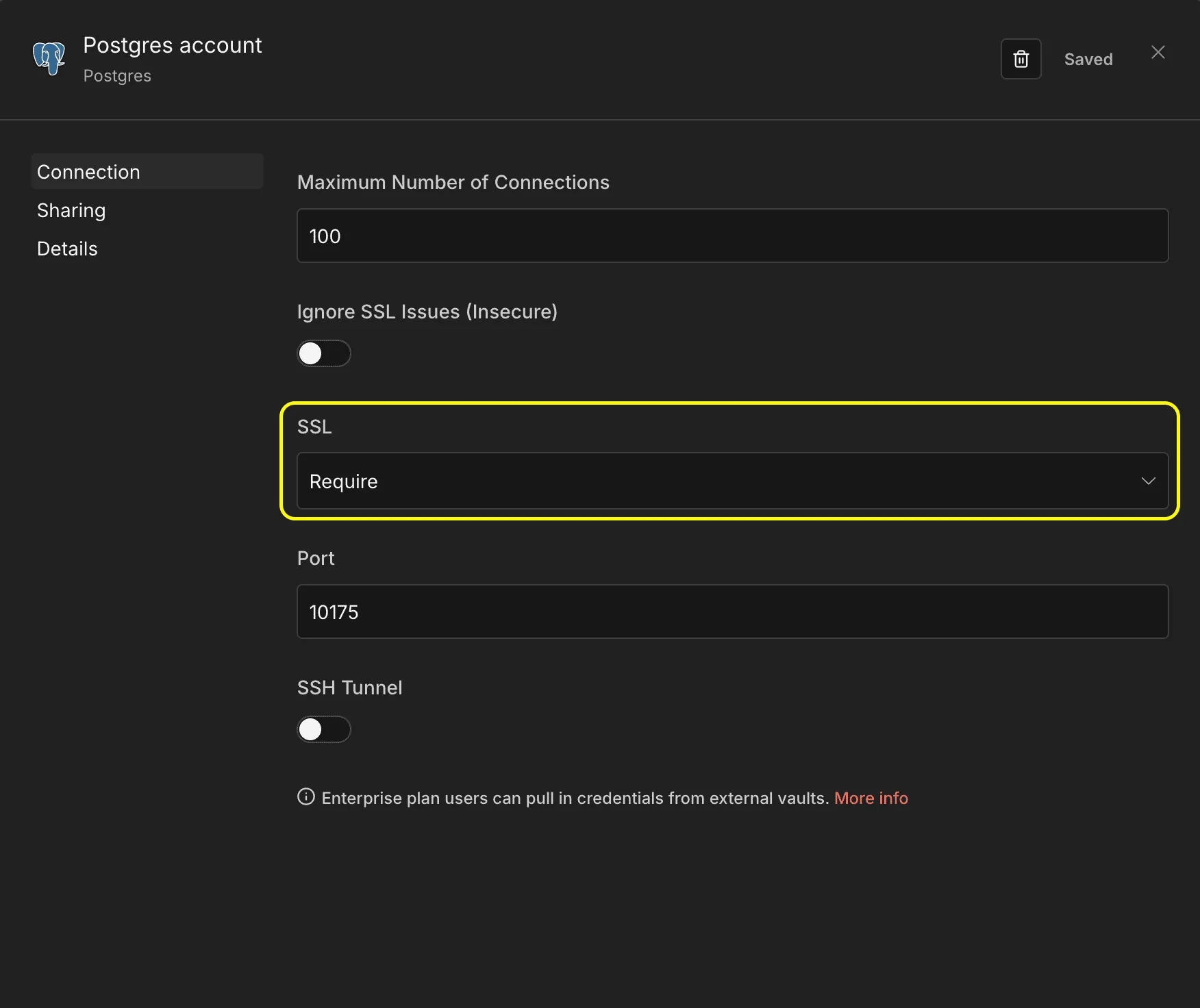
Fill in the connection settings:
- Host — the host from the dashboard
- Database — the database from the dashboard
- User — the user from the dashboard
- Password — the password from the dashboard
- Port — the port from the dashboard
-
Set SSL to require.
-
Click Save. n8n tests the connection and confirms it succeeded.
You can now add a Postgres node to any workflow, select this credential, and run queries against your database.