

SSH Tunneling
Learn how to set up SSH tunneling to access private services
SSH Access Methods in Sliplane
Direct SSH to Container
Open a container shell. SCP and rsync require those tools in the container.
SSH Tunneling
Reach private services through port forwarding, SCP or rsync.
SSH Tunnel Setup
Use an SSH tunnel to reach private services through port forwarding or transfer files with SCP and rsync.
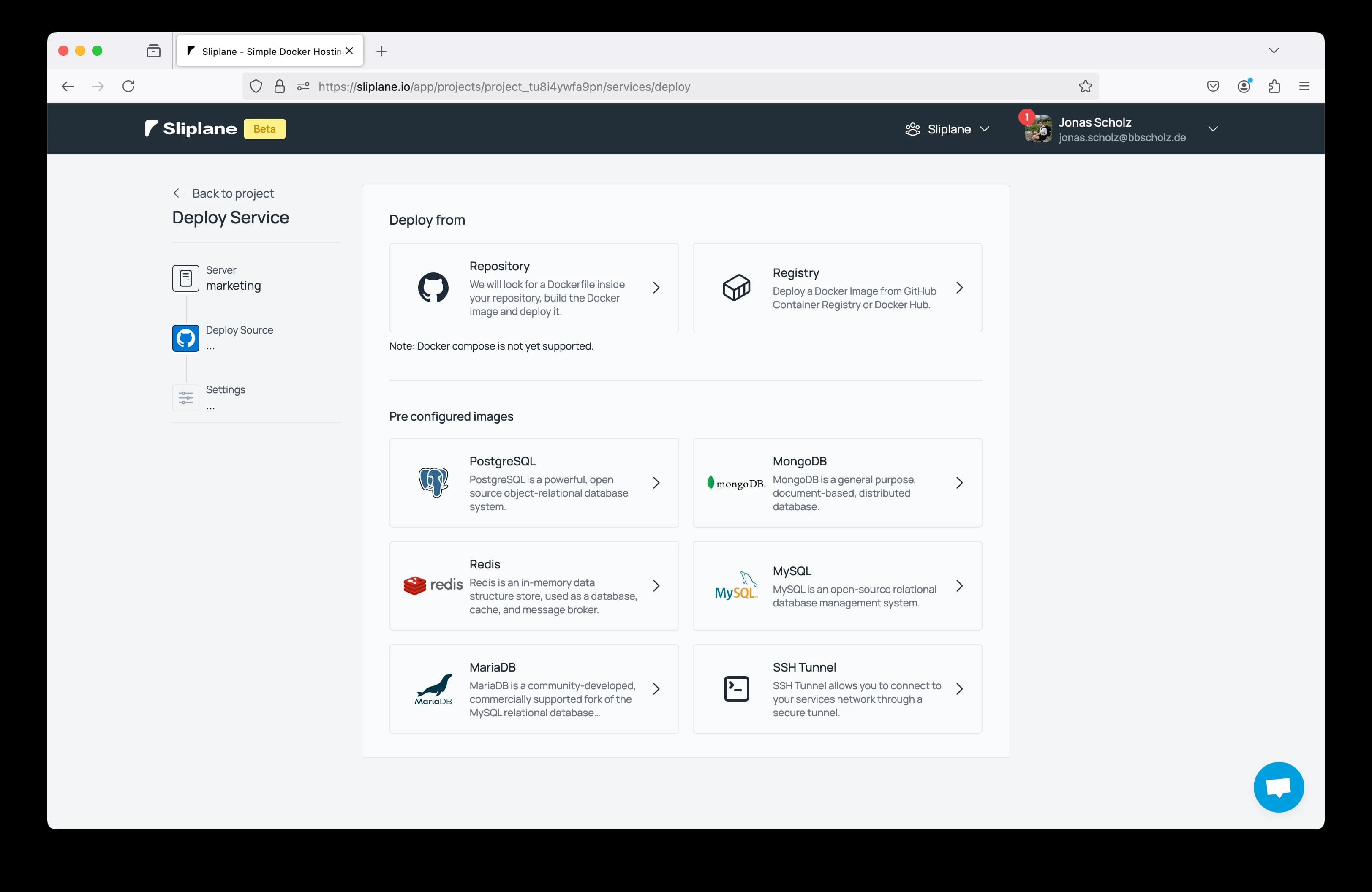
Deploy the SSH Tunnel preset. You can keep all the default settings:
After deploying the service (should take <15 seconds), you will find the port, host, and password in the service details.
Copy the host and port and use the following command to connect to your service:
ssh root@<your-subdomain>.sliplane.app -p 2222It will ask for the password you set in your environment variables.
Using SSH Keys Instead of Password
To use SSH key authentication instead of password:
-
Copy your existing SSH public key (usually found at
~/.ssh/id_rsa.pub):cat ~/.ssh/id_rsa.pub -
Add the public key to your SSH tunnel service:
- Navigate to your SSH tunnel service in Sliplane
- Go to the "Environment Variables" section
- Add a new environment variable:
- Key:
SSH_AUTHORIZED_KEYS - Value: Paste your entire public SSH key
- Key:
-
Update authentication method:
- Remove the
ROOT_PASSWORDenvironment variable if you only want key-based authentication - Or keep both for dual authentication methods
- Remove the
-
Save and redeploy the service to apply the changed environment variables
-
Connect using your SSH key:
ssh root@<your-subdomain>.sliplane.app -p 2222No password prompt will appear if your key is correctly configured.
The SSH tunnel service requires either ROOT_PASSWORD or SSH_AUTHORIZED_KEYS environment variable to be set. Without at least one of these, the service will fail to start.
Once connected, use internal service hostnames to reach private services. To forward a local port:
ssh -L 8080:<your-app.internal>:<your-app-port> root@<your-subdomain>.sliplane.app -p 2222This forwards local port 8080 to your-app-port on the private service.
For container shell access, use direct SSH.
How is this guide?